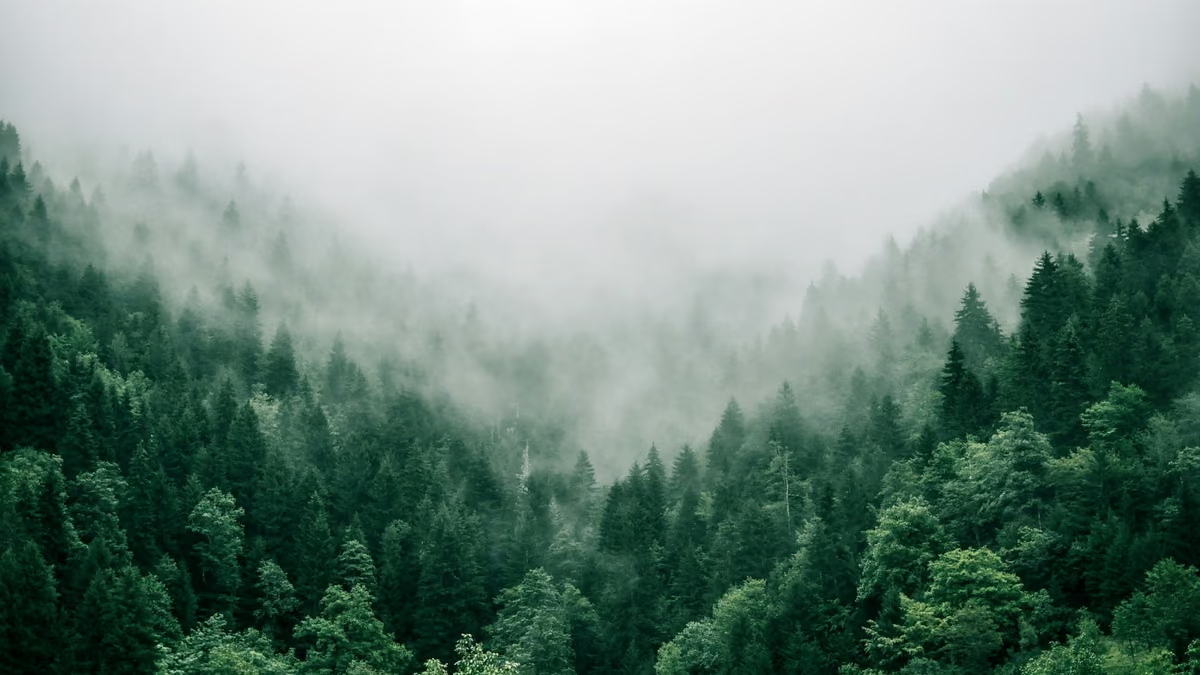
Page 1: Landscape photo
1200 × 675 · 60.4 KiB (61,862 bytes)
Download photo-01.avif
FREE ONLINE PDF CONVERTER
Convert one or multiple AVIF images into a PDF in your browser. Reorder pages, choose A4, US Letter or fit-to-image sizing, and download one document or separate PDFs.
Animated AVIF uses the first frame only. Your images stay in your browser.
Up to 15 AVIF files per batch. File and image size limits apply.
Files are processed locally in your browser. They are not uploaded to our server.
CONVERTER CAPABILITIES
Convert a single AVIF or merge multiple images into one multi-page PDF with full control over page size, orientation, and margins.
| Input / output | One or more AVIF images → one PDF by default, or separate PDFs (ZIP when multiple) |
|---|---|
| Page order | Drag to reorder, use Up / Down buttons, or press keyboard ArrowUp / ArrowDown on a focused page |
| Paper size | Auto / Fit to image, A4 (210 × 297 mm) or US Letter (8.5 × 11 in) |
| Orientation | Auto, Portrait or Landscape (applies to A4 and US Letter) |
| Margins | None (0 pt), Small (24 pt), Medium (48 pt) |
| Auto layout | Keeps the image aspect ratio; image content long edge capped at 792 pt (11 in) before margins |
| Image embedding | Opaque images: JPEG quality 0.92; transparent images: PNG |
| Animated AVIF | First frame only |
| Searchable text | No OCR — image-based PDF pages |
| Desktop limits | 15 files / 80 MiB batch; 25 MiB and 24 MP per image |
| Mobile limits | 5 files / 30 MiB batch; 10 MiB and 12 MP per image |
| Privacy / preview | Local in-browser conversion; preview ready PDFs in a new tab; no sign-up required |
THREE STEPS
Pick a single image, select several files, or click Try 3 sample AVIFs to test multi-page merging.
Reorder the images, then select Auto, A4 or US Letter, along with orientation, margins, and combined or separate output.
Convert locally, preview a completed PDF in a new tab, and download your PDF or multiple PDFs bundled as a ZIP.
REAL FILE EXAMPLES
Download the three sample AVIF images below or load them directly in the converter above to test reordering and multi-page merging. You can also download the sample 3-page PDF to preview the layout.
1200 × 675 · 60.4 KiB (61,862 bytes)
Download photo-01.avif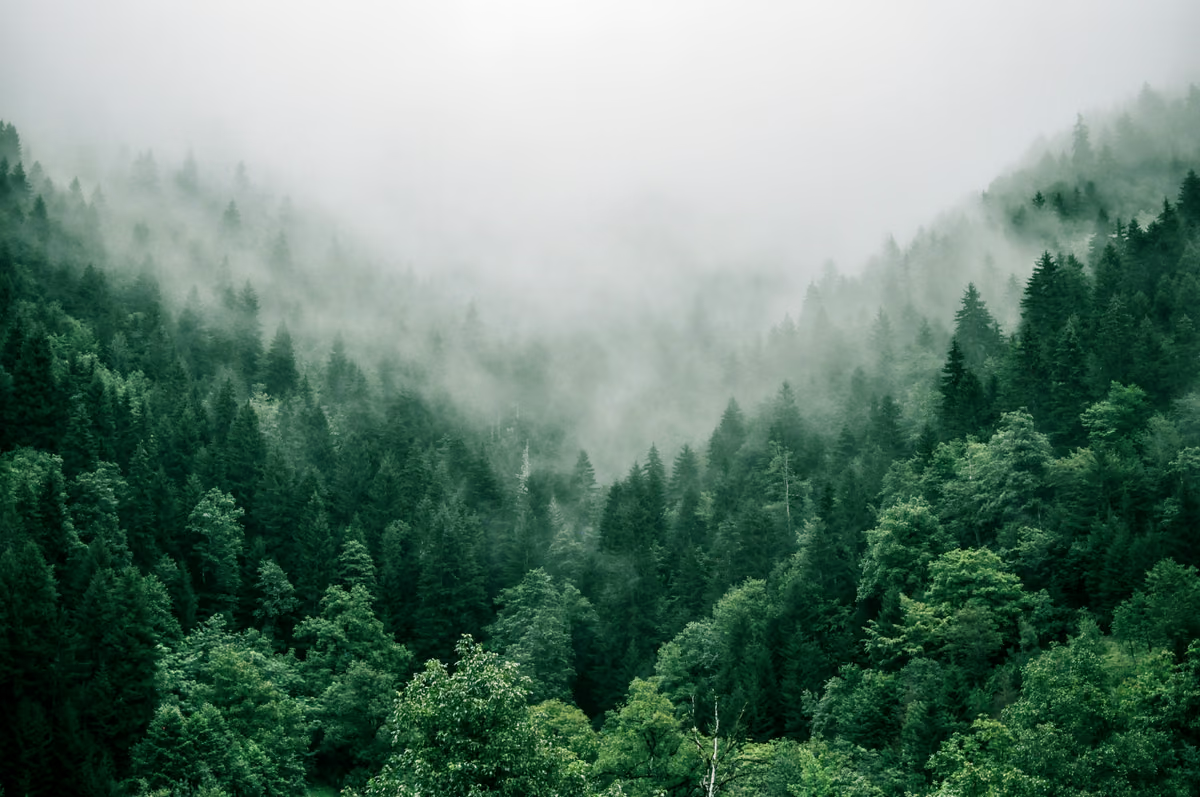
1200 × 797 · 89.1 KiB (91,240 bytes)
Download photo-02.avif
900 × 900 · 15.1 KiB (15,460 bytes)
Download photo-03.avif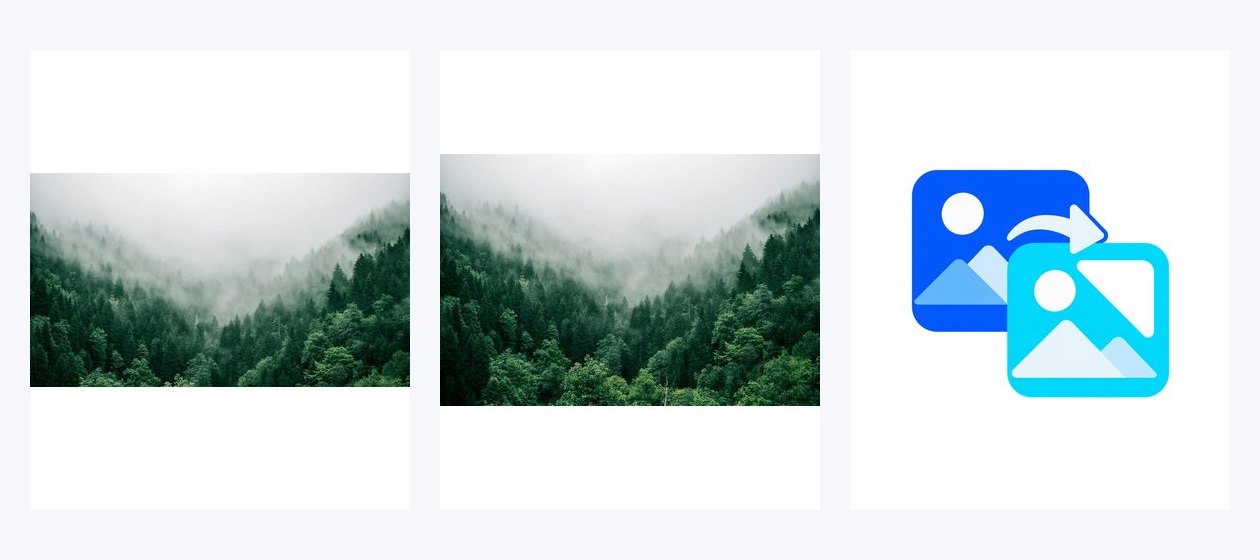
This sample PDF shows an example three-page layout. Click Try 3 sample AVIFs above to generate a live PDF with your chosen page size, orientation, and margins.
PAGE SETTINGS
Matches each page to the image aspect ratio and caps very large photos at an 11-inch long edge so pages view and print cleanly.
Choose standard paper sizes for printing, receipts, forms, or portal uploads. Every image fits cleanly inside the page without cropping.
Choose Portrait or Landscape for fixed paper sizes, then None, Small, or Medium margins. A no-margin PDF does not guarantee borderless printing.
IMAGE QUALITY AND DOCUMENTS
Photos without transparency are embedded as high-quality JPEG (0.92) to keep PDF file sizes practical while staying sharp.
Images with transparent areas are embedded as PNG so transparency is kept intact. Most PDF viewers and printers still show pages on a white background.
This tool makes image pages, not selectable text. To search scanned receipts or notes, use separate OCR software after conversion.
Original AVIF metadata (EXIF) and HDR color data are not carried into the PDF, and the finished document is often larger than the original AVIF files.
WHICH OUTPUT SHOULD YOU CHOOSE?
| Feature | PDF (this tool) | JPG | PNG |
|---|---|---|---|
| Multiple images in one file | Yes — one document with multiple pages | No — one image per file | No — one image per file |
| Paper size and margins | Auto, A4 or US Letter; margins and orientation | Image pixels without document paper layout | Image pixels without document paper layout |
| Transparent areas | Preserved via PNG embedding (most viewers show pages on white) | Not supported (filled with a solid background) | Full smooth transparency preserved |
| File size | Varies by page count, dimensions, and transparency | Compact for everyday photos | Larger lossless files; crisp for graphics and UI |
| Searchable text in images | No OCR — document contains image pages | No OCR | No OCR |
| Best use | Print, organize, archive, or upload image pages as a document | Share an ordinary photo | Keep transparency or crisp graphics and logos |
Need a single still photo instead? Try AVIF to JPG. For graphics with transparent areas, choose AVIF to PNG.
COMMON QUESTIONS
Choose one or more AVIF images, arrange their order, select a page size, then press Convert to PDF. You can preview and download the finished document without uploading your images to a server.
Yes. Combine all images into one PDF is the default. Each still image becomes one page in the same document. It works for receipts, scanned notes, screenshots, and photo collections.
Yes. Use the Up and Down buttons on each image card, including on mobile. On a keyboard, focus a page in the queue and press ArrowUp or ArrowDown to move it.
Auto follows the image aspect ratio and limits the image content long edge to about 11 inches before margins are added. Choose A4 (210 × 297 mm) or US Letter (8.5 × 11 in) when you need a standard document size. Orientation can be changed for A4 or Letter.
Choose None (0 pt), Small (24 pt) or Medium (48 pt). Small is approximately 8.5 mm and Medium approximately 16.9 mm. None does not guarantee borderless printing on your printer.
Opaque images are embedded as high-quality JPEG (0.92) to keep file sizes practical, while transparent images are embedded as PNG to preserve transparency. As with any conversion from a compressed AVIF, it cannot restore detail already lost in the original file.
Not automatically. This tool creates image-based PDF pages and does not perform text recognition. Use OCR software if you need the text inside a screenshot or scan to be selectable or searchable.
After conversion, use Preview PDF to open a completed PDF in a new tab. If you choose a separate PDF for each image, one file downloads as PDF; multiple PDFs are bundled into a ZIP.
AVIF uses much tighter image compression than standard JPEG or PNG embedded inside a PDF. Final size depends on image dimensions, transparency, and page count, so a PDF is often larger than the original AVIF files.
Transparent images are inserted as PNG images inside the PDF rather than flattened to JPEG. PDF viewers and printing workflows can still display page backgrounds as white.
Only the first frame of each animated AVIF is inserted as a PDF page. The tool does not convert an animation into dozens of pages or embed a playable animation.
Building a multi-page PDF takes extra memory because the browser assembles all pages into one document. The desktop limit is 15 files / 80 MiB per batch; mobile is 5 files / 30 MiB per batch. Smaller batches help avoid browser memory failures.
Yes. No sign-up is needed and there is no daily conversion cap. Your AVIF files stay on your device and are converted locally in your browser.