
Transparent AVIF becomes a JPG with a background
JPG has no transparency. In this conversion, transparent pixels are filled with white; choose another background color in the converter when needed.
FREE ONLINE IMAGE CONVERTER
Convert still AVIF images to JPG or JPEG directly in your browser. Batch convert photos, adjust quality, set a background color for transparent images, and download without uploading files.
Static AVIF only · 25 MB and about 24 megapixels each · Up to 20 files or 100 MB at a time
Your files stay on your device and are never uploaded to our server.
THREE STEPS
Drop files here or select them from your device.
Set JPG quality and a background color if your image is transparent.
Download one image or get multiple results in a ZIP file.
EXAMPLE RESULTS
These examples show how AVIF files look after conversion to JPG. The sizes shown are from these example exports; your result can vary by image, quality setting, and browser.
JPG has no transparency. In this conversion, transparent pixels are filled with white; choose another background color in the converter when needed.
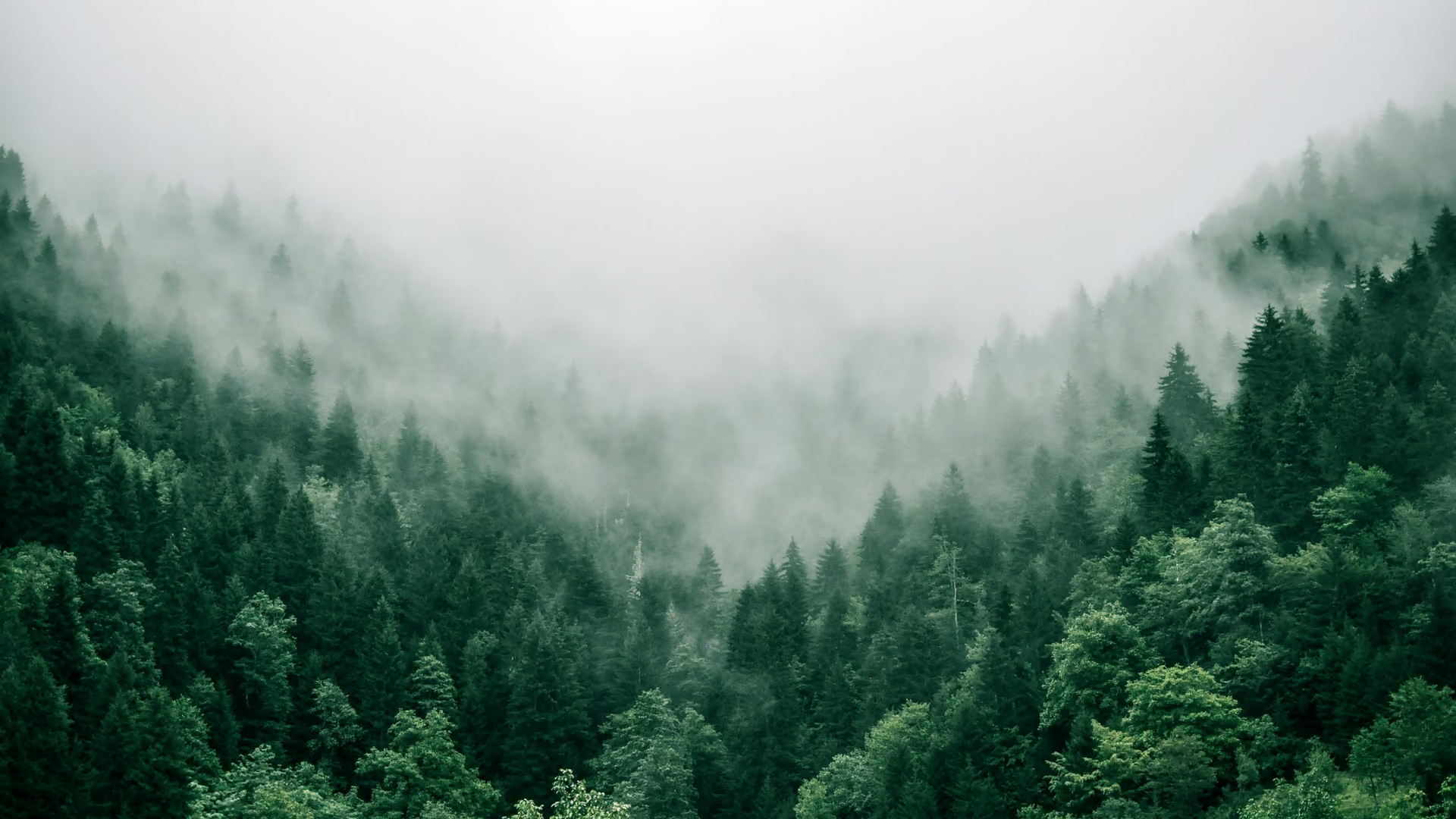
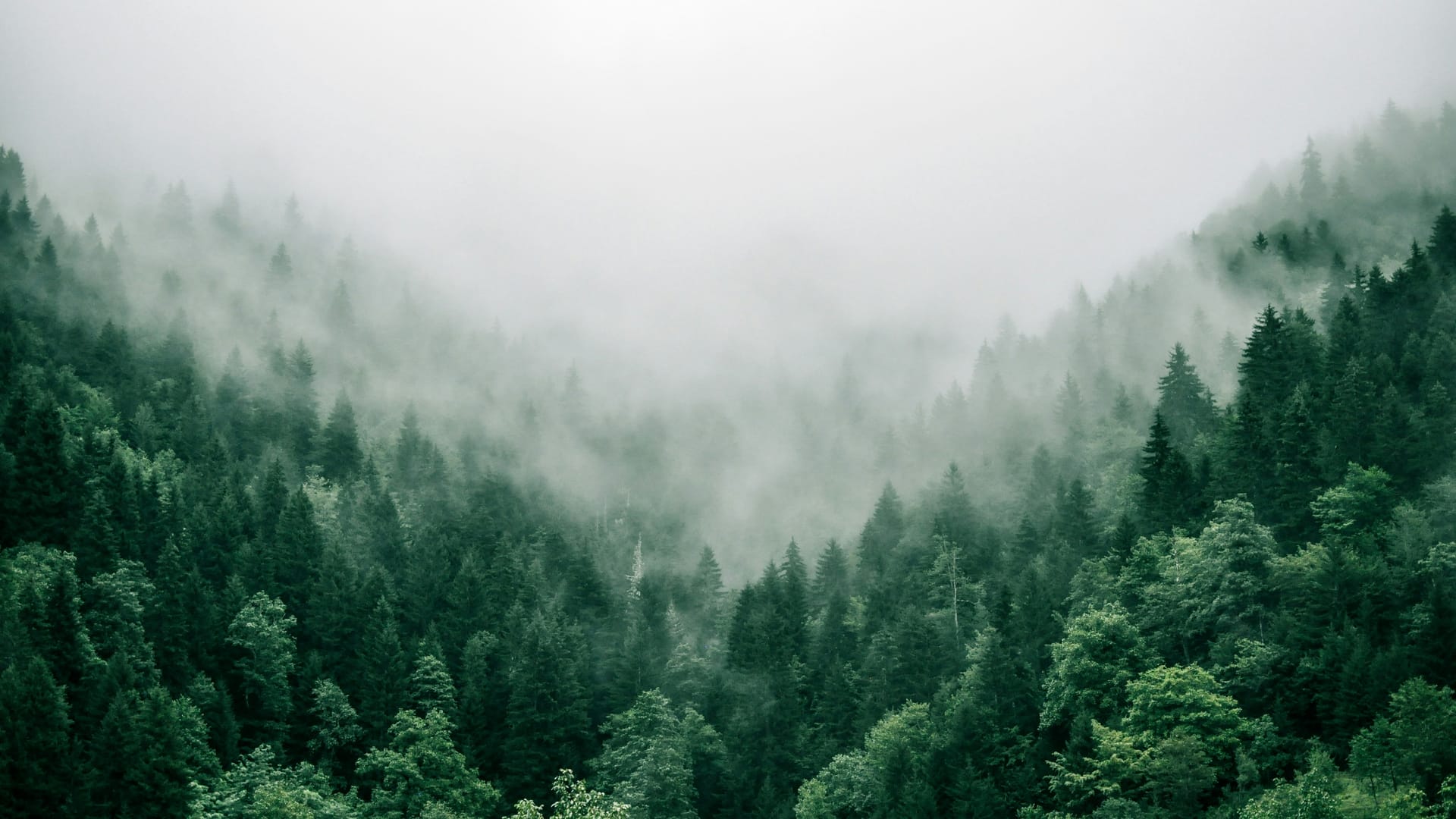
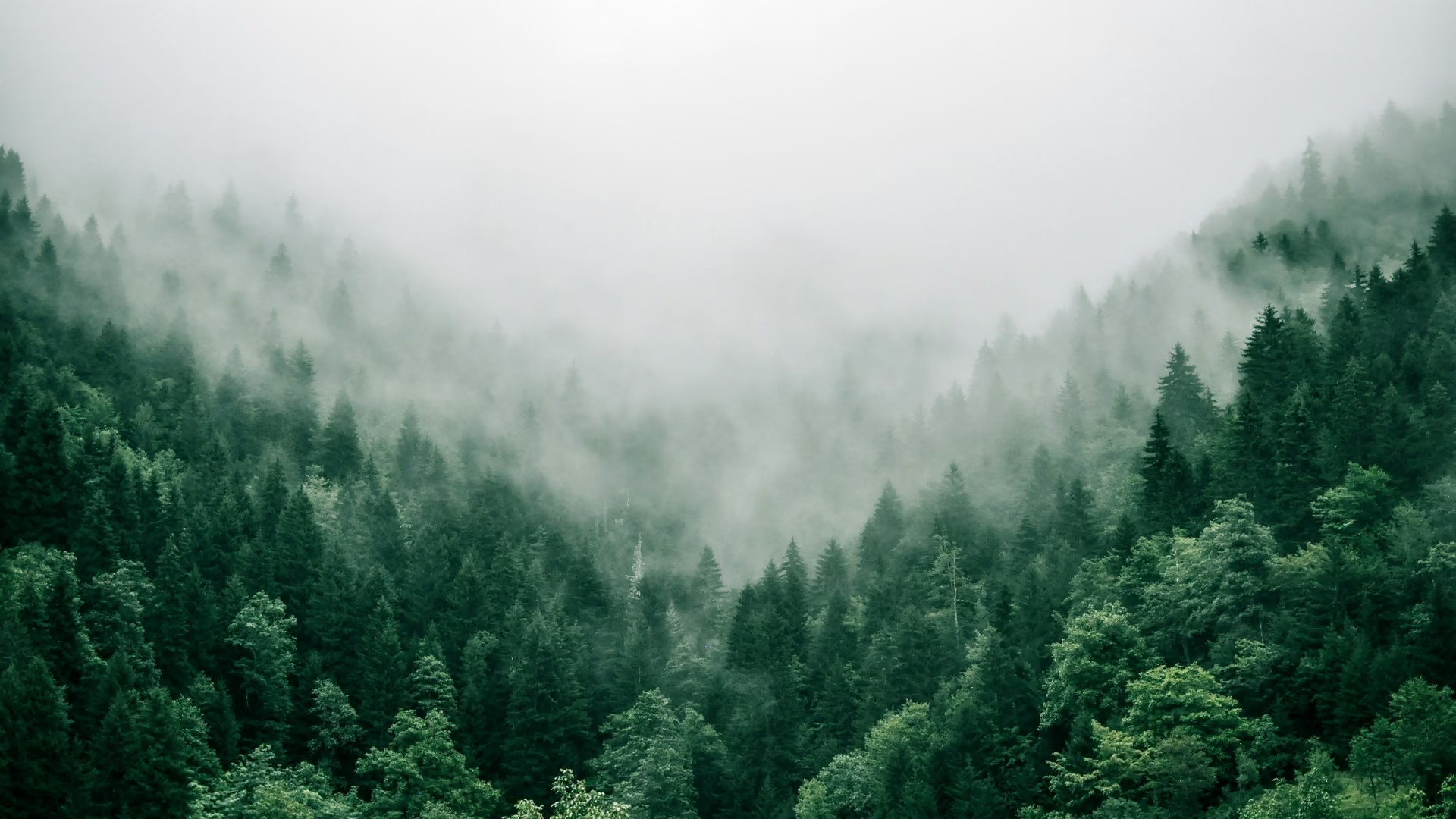
JPG output can be larger than AVIF. Start around quality 80–90, then use the actual size shown next to your result to choose the right balance.
| Sample | Source AVIF | JPG output | Export settings |
|---|---|---|---|
| Transparent graphic | 22 KB | 52 KB | Quality 90 · white background |
| Landscape photo | 112 KB | 187 KB | Quality 80 |
| Same landscape photo | 112 KB | 295 KB | Quality 90 |
JPG files are often larger than the original AVIF, as shown above. Exact file sizes depend on image detail and the quality setting you choose.
BATCH CONVERSION
Drop in multiple AVIF images and convert them all at once in your browser — up to 20 files (100 MB total) on desktop, or 10 files (50 MB total) on mobile. Download each JPG individually or grab the whole batch in one ZIP, with no sign-up required.
QUALITY & BACKGROUND
Quality 80–90 is a reliable starting point for sharing; lower it slightly if you want smaller files. Because JPG doesn’t support transparency, transparent areas are filled with white by default — pick another background color in the converter, or use AVIF to PNG to keep transparent backgrounds.
FORMAT COMPATIBILITY
Choose JPG/JPEG when an email app, print shop, document editor, CMS, or upload form rejects AVIF. JPG opens almost everywhere, though it doesn’t keep transparency or animation and files can be larger. Need smaller web images later? You can convert JPG to AVIF and compare the savings.
AT A GLANCE
Key formats, limits, and privacy details for this converter.
| Input | Still AVIF (.avif). For animated AVIF, use WebP or GIF. |
|---|---|
| Output | JPEG (.jpg), quality 1–100 (default 90). |
| Transparent pixels | Filled with your chosen background color (default white, #FFFFFF). |
| Desktop limits | Up to 20 files / 100 MB per batch; 25 MB and 24 megapixels per image. |
| Mobile limits | Up to 10 files / 50 MB per batch; 10 MB and 12 megapixels per image. |
| Privacy & downloads | Processed locally in your browser (no uploads). Download single JPGs or a batch ZIP — free, no sign-up. |
AT A GLANCE
| Feature | AVIF | JPG |
|---|---|---|
| File size | Much smaller at similar quality | Larger, widely compatible |
| Transparency | Supports transparent areas | Not supported — uses a background color |
| Lossy? | Usually lossy | Always lossy |
| Animation | Possible | Not possible — still image only |
| Opens anywhere? | Most modern browsers and devices | Nearly everything |
For this tool, an important detail: JPG has no alpha channel, so any transparent area in your AVIF is filled with the background color you pick in the converter. Read the AVIF vs JPG comparison for more detail, or learn what an AVIF file is if you are new to the format.
COMMON QUESTIONS
Yes. You can convert supported still AVIF images without creating an account.
No. Everything converts locally in your browser, so your images never leave your device. You only need an internet connection to open the page.
Yes. JPG and JPEG are the same image format — .jpg and .jpeg files are interchangeable. This converter saves files with the .jpg extension, which works anywhere JPEG is accepted.
Yes. Add a batch and download ready results together. The upload area shows how many files and how much total size you can add.
JPG does not support transparency. Transparent pixels are filled with the background color selected in the converter (white by default). Pick another color before downloading if needed.
AVIF compresses images much more tightly than JPEG, so converting a small AVIF to a high-quality JPG often increases the file size. Start around quality 80–90 and check the output size next to each image to find the right balance.
JPG is a single-image format. This tool accepts static AVIF files only. For animated AVIF sequences, use the AVIF to WebP converter when you want true color and transparency, or the AVIF to GIF converter for classic GIF output. See what AVIF is for how animation works in the format.
The file may be invalid, unsupported, over the limit, or unreadable in your current browser. Try a current browser or a different AVIF file — see the common errors guide for more fixes.
JPG uses lossy compression, so re-saving an AVIF as JPG can introduce slight softening (and cannot restore detail already lost in the original AVIF). If you need transparency or lossless PNG output, use the AVIF to PNG converter instead.